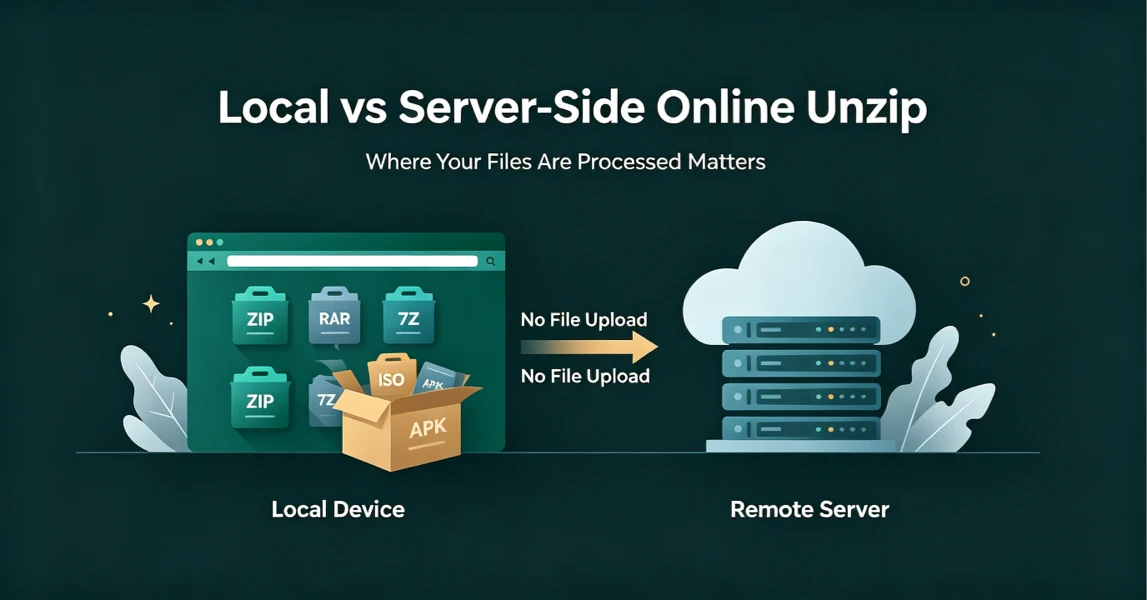
Local vs Server-Side Online Unzip: Why Where Your Files Are Processed Matters
Not all online unzip tools work the same way. Learn the difference between server-side extraction and true local browser-based processing, and why it matters for your privacy.
Introduction
When you search for an online unzip tool, you will find many services that look similar at first glance. They all let you upload an archive, wait a few seconds, and download the extracted files. However, the most important difference is not the number of supported formats or the design of the website — it is where your files are actually processed.
Some tools extract archives on a remote server. Others run extraction directly inside your browser. This difference has a major impact on privacy, file safety, internet speed, and trust.
This article explains why you should care about processing location, how to tell if a tool is truly local, and how UnzipIt helps keep your files on your device.
Two Different Types of Online Unzip Service
1. Server-Side Online Extraction
Server-side extraction means your archive is sent over the internet to a remote server. Once uploaded, the server unpacks the files, and then you download the results back to your device.
This model is common, but it comes with several risks:
- Your files leave your device.
- Private documents, photos, work files, or passwords may be exposed to third-party systems.
- The service may store file names, metadata, or even content temporarily or permanently.
- Uploading large archives can be slow, especially on unstable internet connections.
- You must trust the provider’s security policies, server infrastructure, and deletion promises.
For these reasons, server-side tools can be convenient for public and non-sensitive files, but they are not ideal for confidential or personal archives.
2. Local In-Browser Extraction
Local in-browser extraction means the archive never leaves your device. After the web page loads, the extraction happens inside your browser using technologies like WebAssembly and Web Workers.
In this model:
- Your files are processed on your own device.
- No large file is uploaded to a remote server.
- The service provider never sees the content of your archive.
- File names, passwords, and extracted data remain in your browser memory.
- You can often use the tool even after disconnecting from the internet.
This approach is more privacy-friendly because it reduces data exposure to a minimum.
Why Processing Location Matters
Privacy
If you upload a ZIP, RAR, or 7Z file containing personal documents, invoices, photos, or work files, you may not want anyone else to access it. With server-side tools, the file must travel through networks and be processed on someone else’s hardware.
With local extraction, the sensitive data stays inside your own device. This is especially important if you are handling customer data, internal company files, identification documents, or personal archives.
Speed
Server-side extraction depends on your internet connection. Uploading a large archive can take minutes or even hours. If the connection is interrupted, you may need to start over.
Local extraction does not require upload bandwidth. Once the web application is loaded, the speed depends mainly on your device’s CPU and memory, not your internet speed.
Trust
Many online tools promise privacy, but the promise is only meaningful if the architecture supports it. A truly local tool does not need to trust the server with your files because the server never receives them.
This is an important distinction: privacy policies can change, but a client-side architecture limits risk by design.
How to Check If an Online Unzip Tool Is Truly Local
You do not need to be a developer to verify how a tool works. Here are two simple tests:
Test 1: Check the Network Panel
Open your browser’s developer tools, go to the Network tab, and then upload an archive. If you see a large upload request sent to the server during extraction, the tool is probably server-side.
If no large file upload appears and the archive is processed immediately in the browser, it is more likely using local extraction.
Test 2: Disconnect the Internet
Load the tool’s web page completely, then turn off your internet connection. If you can still select and extract archives after disconnecting, the tool is working locally.
If the extraction fails without an internet connection, it probably depends on a remote server.
How UnzipIt Handles Your Files
UnzipIt is built around local browser-based extraction. After you visit unzipit.online, the web page loads static resources such as HTML, CSS, JavaScript, and WebAssembly code. When you drop an archive into the tool, the file is read directly by your browser and processed locally.
UnzipIt does not send your archive, file contents, passwords, or extracted documents to a backend server. The server only delivers the web application itself. This means your files stay under your control.
Important Limitations
Local processing improves privacy, but it does not make the tool risk-free.
UnzipIt does not scan archives for malware. If you open an archive from an untrusted source, malicious files could still affect your device. You should only extract archives from sources you trust.
Also, very large archives may require more device memory. If you are working with extremely large files, closing other browser tabs or applications may help improve performance.
Conclusion
Not all online unzip tools are equally safe. Server-side tools require you to trust a third party with your files, while local browser-based tools keep your data on your device.
For everyday files, sensitive documents, work archives, and situations where you cannot install software, local extraction is usually the better choice.
UnzipIt offers a free, no-install, browser-based extraction experience that processes your archives locally. To learn more, visit unzipit.online.